
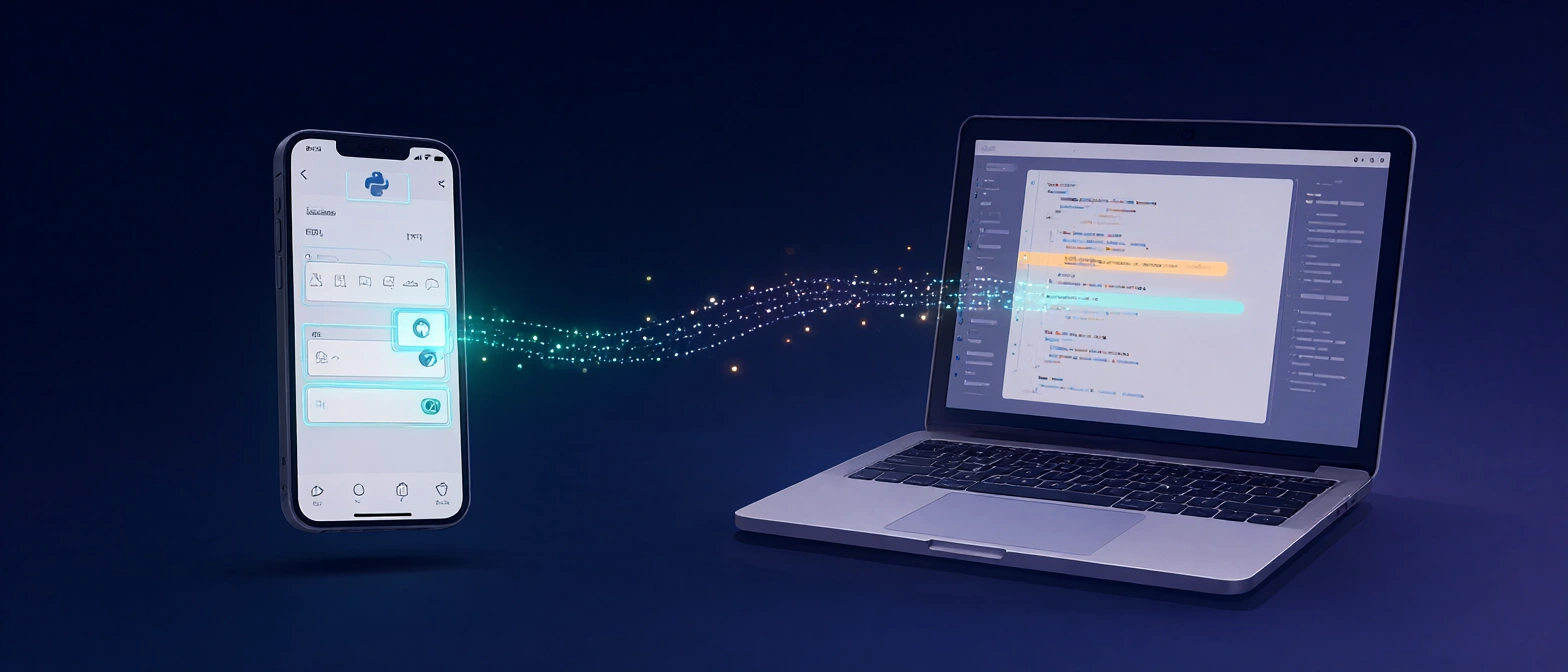
最近项目中需要在 Android 手机上做 UI 自动化测试,经过一番调研和实践,发现 uiautomator2 是一个非常适合 Python 开发者的工具。它可以通过 ADB 与手机上的 UiAutomator 服务通信,实现元素查找、点击、输入、滑动、截图、应用管理等操作,而且不需要 root,也不需要安装 Appium Server。所以整理了这份面向初学者的完整使用指南:从安装、连接设备,到元素定位、点击输入、应用管理、等待与异常处理。
1. uiautomator2 是什么
uiautomator2 是一个 Android UI 自动化库:Python 代码通过 ADB 与手机上的 UiAutomator 服务通信,完成元素查找、点击、输入、滑动、截图、应用管理等操作。它不需要 root(绝大多数场景),也不需要安装 Appium Server。
1.1 工作原理
1
2
3
4
5
6
┌──────────────────┐     adb 连接(TCP)      ┌────────────────────────────┐
│  Python 脚本     │ ───────────────────────> │  手机端 u2.jar             │
│  uiautomator2    │ <─────────────────────── │  (UiAutomator + HTTP)    │
└──────────────────┘        JSON-RPC          └─────────────┬──────────────┘
                                                            │
                                                    Android UI / 应用
- 设备端:一个
u2.jar,通过app_process启动,内部基于 Google UiAutomator,对外暴露 HTTP/JSON-RPC 接口。 - 客户端:Python 库,把
d.click()、d.xpath()等调用翻译成 JSON-RPC 请求。 - 通信通道:通过 adb 直接建立到设备端口的 TCP 连接,不需要
adb forward,也不需要 atx-agent。
1.2 3.x 的关键变化
- 移除了 atx-agent 和常驻后台服务,改为运行时启动
u2.jar,Python 退出时自动停止。 - 不再默认安装 minicap、minitouch。
- 连接方式只支持本机 adb 可见的设备(USB、模拟器),或已经
adb connect的设备。 - 日志改用标准库
logging,默认不输出。 - 最低 Python 3.8。
1.3 它能做什么
| 能力 | 典型接口 |
|---|---|
| 元素定位与操作 | d(text=...)、d.xpath(...) |
| 全局手势 | d.click、d.swipe、d.drag、d.swipe_ext |
| 文本输入 | d.send_keys、set_text、d.send_action |
| 应用管理 | app_start、app_stop、app_install、session |
| 屏幕 | screenshot、dump_hierarchy、screen_on/off |
| 系统能力 | shell、push/pull、剪贴板、通知栏 |
2. 安装与准备
2.1 电脑端
| 依赖 | 要求 |
|---|---|
| Python | 3.8 及以上 |
| ADB | 能正常执行 adb devices |
| 操作系统 | macOS / Linux / Windows 均可 |
1
2
3
4
5
6
7
8
9
10
# macOS 安装 adb(Windows 请下载 platform-tools 并加入 PATH)
brew install --cask android-platform-tools
adb version

# 建议使用虚拟环境
python3 -m venv .venv
source .venv/bin/activate          # Windows: .venv\Scripts\activate

# 安装或升级到最新版
python -m pip install -U uiautomator2
Debian/Ubuntu 也可以
sudo apt install adb;但发行版自带的 adb 可能较旧,连不上新手机时请换用 Google 官方 platform-tools。
2.2 手机端
- 打开“设置 → 关于手机”,连续点击“版本号”7 次,开启开发者选项。
- 在“开发者选项”中打开 USB 调试。
- 用数据线连接电脑,手机弹出“允许 USB 调试吗?”时勾选“始终允许”并确定。
- 部分国产 ROM 还需要:
- 小米/Redmi:打开“USB 调试(安全设置)”“USB 安装”;
- vivo/OPPO/一加:打开“USB 调试(安全设置)”或关闭“权限监控”;
- 连接模式选择“文件传输(MTP)”,不要选“仅充电”。
验证连接:
1
2
3
adb devices
# List of devices attached
# R58M123456A    device
看到 device 才算成功;unauthorized 表示手机上没有点“允许”,offline 表示连接异常。
2.3 验证安装
1
2
3
4
5
6
uiautomator2 version
# uiautomator2 version: 3.7.0

# 需要已连接设备;它会实际连一次设备并读取信息
uiautomator2 doctor
# ... uiautomator2 is OK
在 Python 里获取版本(注意:库没有暴露 u2.__version__):
1
2
3
import importlib.metadata

print(importlib.metadata.version("uiautomator2"))
2.4 元素查看工具(强烈建议)
写脚本前,你需要看到当前界面的控件树、resource-id 和文本。官方当前推荐 uiautodev:
1
2
3
4
5
6
# 方式一:pip 安装
python -m pip install uiautodev
uiautodev

# 方式二:npx(需要 Node.js),会自动打开浏览器
npx uiautodev -open
也可以用 uiautomatorviewer、Appium Inspector。旧教程常提的 weditor 已多年未更新,不建议作为首选。
3. 连接设备
3.1 最简连接
1
2
3
4
import uiautomator2 as u2

d = u2.connect()          # 只有一台设备时
print(d.info)
u2.connect() 的规则:
- 如果设置了环境变量
ANDROID_SERIAL,优先使用它; - 否则交给 adbutils 选择当前唯一在线的设备;
- 多台设备同时在线时必须显式指定序列号。
3.2 指定设备
1
2
d = u2.connect("R58M123456A")       # adb devices 里显示的序列号
d = u2.connect_usb("R58M123456A")   # 同义函数
通过环境变量:
1
export ANDROID_SERIAL=R58M123456A   # Windows: set ANDROID_SERIAL=...
1
d = u2.connect()
通过 transport_id(适合序列号不好记、或 adb 里同一序列号有多个传输通道):
1
2
adb devices -l
# R58M123456A  device 0-1.2.2 ... transport_id:6
1
2
3
4
5
import adbutils
import uiautomator2 as u2

dev = adbutils.device(transport_id=6)   # 需要 adbutils >= 2.9.1
d = u2.connect(dev)
传入 adbutils.AdbDevice 对象时,uiautomator2 会直接复用它,不再自己查找设备。
3.3 无线连接
先让 adb 通过 Wi-Fi 连上手机,再交给 uiautomator2:
1
2
3
# 手机和电脑在同一局域网
adb connect 192.168.1.20:5555
adb devices
1
d = u2.connect("192.168.1.20:5555")
Android 11+ 的“无线调试”需要先配对:
1
2
adb pair 192.168.1.20:37123     # 端口和配对码见手机“无线调试”页面
adb connect 192.168.1.20:5555
3.x 不再支持“直接填手机 IP、由 atx-agent 建连”的方式,必须先是
adb devices里在线的设备。
3.4 自定义设备端端口
默认端口是 9008。同一台设备需要并行跑多个服务端时(例如两个独立脚本),可以换端口:
1
d = u2.connect("R58M123456A", port=9009)
命令行同样支持(-p 要放在子命令后面):
1
uiautomator2 screenshot -p 9009 screen.jpg
3.5 首次连接发生了什么
- 客户端检查设备上的
/data/local/tmp/u2.jar的 MD5,不一致就从 Python 包里推送一份。 - 通过 adb shell 以
app_process启动设备端服务,监听 9008 端口。 - 轮询
GET /ping,直到返回pong。 - 之后所有操作走 JSON-RPC。
- Python 进程退出时,
atexit会停掉设备端服务。
所以:
- 不需要手动
init,也不需要装 APK; - 首次连接会慢几秒(推送 jar),之后很快;
- 只有用到文本输入时,才会按需安装输入法 APK;
- 设备端服务是“随脚本启动”的,脚本退出后服务也会退出,属正常现象。
3.6 连接失败排查
| 现象 | 可能原因 | 处理 |
|---|---|---|
adb devices 为空 | 数据线/驱动/未授权 | 换线、换 USB 口、重新插拔 |
显示 unauthorized | 手机没点允许 | 解锁手机,重新确认调试弹窗 |
显示 offline | adb 状态异常 | adb kill-server && adb devices |
ConnectError: device ... not online | 序列号错误、无线断连 | 核对序列号,重新 adb connect |
LaunchUiAutomationError: server not ready | 服务启动失败 | 重启手机;关闭其他自动化工具 |
AccessibilityServiceAlreadyRegisteredError | UiAutomation 被占用 | 关掉 Appium、其他 u2 脚本、投屏工具的自动化功能 |
InjectPermissionError | 缺少模拟点击权限 | 开发者选项里打开“USB 调试(安全设置)” |
| 首次连接卡住很久 | 正在推送 jar / 安装输入法 | 等待;检查手机是否弹安装确认 |
4. 第一个脚本
下面这个脚本不依赖具体 App 的业务,只做一次“唤醒 → 打开设置 → 找元素 → 截图 → 回桌面”的完整流程:
1
2
3
4
5
6
7
8
9
10
11
12
13
14
15
16
17
18
19
20
21
22
23
24
25
import uiautomator2 as u2

SERIAL = None          # 多设备时填 "adb devices" 中的序列号
d = u2.connect(SERIAL)

print("设备信息:", d.device_info)
print("屏幕尺寸:", d.window_size())

d.screen_on()          # 点亮屏幕
d.unlock()             # 简单上滑解锁(不处理密码/PIN)

# 打开系统设置;不传 activity 时内部用 monkey 启动
d.app_start("com.android.settings", stop=True)

# 中英文界面都尝试一下;找不到返回 False,不会抛异常
opened = d.xpath(
    "//*[@text='Network & internet' or @text='网络和互联网']"
).click_exists(timeout=10)
print("进入网络设置:", opened)

d.screenshot("settings.png")
print("当前应用:", d.app_current())

d.press("back")
d.press("home")
几个要点:
d.app_start(pkg, stop=True)会先强制停止再启动,适合做“冷启动”用例。click_exists()找不到只返回False,适合处理“可能出现的弹窗/引导”。- 截图默认保存为当前目录下的文件。
d.unlock()只会点亮屏幕并上滑,不会帮你输入密码或图案。
5. 设备信息
1
2
3
4
5
6
print(d.info)            # UiAutomator 提供的信息
print(d.device_info)     # 基于 adb getprop 的信息
print(d.window_size())   # (宽, 高)
print(d.app_current())   # 当前前台应用
print(d.serial)          # 设备序列号
print(d.wlan_ip)         #  Wi-Fi IP,可能为 None
5.1 d.info 常用字段
| 字段 | 含义 |
|---|---|
currentPackageName | 当前前台包名 |
displayWidth / displayHeight | 屏幕宽高(像素) |
displayRotation | 旋转方向,0/1/2/3 |
displaySizeDpX / displaySizeDpY | 屏幕宽高(dp) |
naturalOrientation | 是否自然方向 |
productName | 产品名 |
screenOn | 屏幕是否亮着 |
sdkInt | Android API Level |
5.2 d.device_info
3.x 只返回 6 个字段:
1
2
3
4
5
6
7
8
{
    "serial": "R58M123456A",
    "sdk": 34,
    "brand": "google",
    "model": "sdk_gphone64_arm64",
    "arch": "arm64-v8a",
    "version": 14,
}
5.3 当前应用与 Activity
1
2
3
4
5
6
info = d.app_current()
# {'package': 'com.android.settings', 'activity': '.Settings', 'pid': 12345}
print(info["package"], info["activity"])

# 等待指定 Activity 出现,返回 bool,默认等 10 秒
ok = d.wait_activity(".Settings", timeout=10)
wait_activity 是字符串完全相等比较,写 .Settings 还是 com.android.settings.Settings 取决于 app_current() 返回什么。
5.4 屏幕尺寸
1
2
w, h = d.window_size()
print(w, h)      # 例如 (1080, 2400)
横屏时宽高会互换。
6. 元素定位:Selector
Selector 是 UiAutomator 原生的 UiSelector,查询在设备端执行,速度快,适合稳定控件和滚动容器。
6.1 基本用法
1
d(text="Clock", className="android.widget.TextView")
d(...) 只是构造一个 UiObject,不会立即查询;直到你访问 .exists、.info、调用 .click() 等才会发请求。
1
2
d(text="设置").click()
d(text="设置", className="android.widget.TextView").click()
6.2 参数速查
| 参数 | 类型 | 说明 |
|---|---|---|
text | str | 文本完全相等 |
textContains | str | 文本包含 |
textMatches | str | 文本匹配 Java 正则(整串匹配) |
textStartsWith | str | 文本以某串开头 |
className | str | 类名完全相等,如 android.widget.Button |
classNameMatches | str | 类名正则 |
description | str | contentDescription 完全相等 |
descriptionContains | str | contentDescription 包含 |
descriptionMatches | str | contentDescription 正则 |
descriptionStartsWith | str | contentDescription 开头 |
checkable | bool | 是否可勾选 |
checked | bool | 是否已勾选 |
clickable | bool | 是否可点击 |
longClickable | bool | 是否可长按 |
scrollable | bool | 是否可滚动 |
enabled | bool | 是否启用 |
focusable | bool | 是否可聚焦 |
focused | bool | 是否已聚焦 |
selected | bool | 是否被选中 |
packageName | str | 包名 |
packageNameMatches | str | 包名正则 |
resourceId | str | 资源 id,如 com.example:id/login |
resourceIdMatches | str | 资源 id 正则 |
index | int | 在父节点中的索引 |
instance | int | 匹配结果中的第几个(从 0 开始) |
多个条件是 AND 关系:
1
d(text="登录", className="android.widget.Button", clickable=True)
6.3 父子与兄弟
1
2
3
4
5
6
7
8
9
10
11
12
13
14
15
16
# 子节点(可跨层级)
d(className="android.widget.ListView").child(text="Bluetooth")

# 兄弟节点
d(text="Google").sibling(className="android.widget.ImageView")

# 在列表容器里按文本找子项;允许滚动查找
d(className="android.widget.ListView", resourceId="android:id/list") \
    .child_by_text("Wi-Fi", className="android.widget.LinearLayout",
                   allow_scroll_search=True)

# 按 contentDescription 找子项
d(className="android.widget.ListView").child_by_description("蓝牙")

# 按 instance 找子项
d(className="android.widget.ListView").child_by_instance(2)
链式调用可以一直往下找:
1
2
3
4
d(className="android.widget.ListView", resourceId="android:id/list") \
    .child_by_text("Wi-Fi", className="android.widget.LinearLayout") \
    .child(className="android.widget.Switch") \
    .click()
6.4 相对位置
1
2
3
4
d(text="Wi-Fi").right(className="android.widget.Switch").click()
d(text="Wi-Fi").left(className="android.widget.ImageView").click()
d(text="Wi-Fi").up(className="android.widget.TextView").click()
d(text="Wi-Fi").down(className="android.widget.TextView").click()
这些方法返回 UiObject 或 None,找不到时先判断再点击。
6.5 多实例与列表式 API
1
2
3
4
5
6
7
8
9
items = d(text="Add new")

print(items.count)      # 匹配数量
print(len(items))       # 同上
print(items[0].info)    # 第一个
print(items[-1].info)   # 最后一个

for view in items:
    print(view.info["text"], view.info["bounds"])
遍历期间如果界面发生变化,后续索引可能失效(元素已不存在)。遍历前尽量先固定界面,或先把
info取出来。
7. 元素定位:XPath
7.1 工作方式
d.xpath(...) 的执行过程是:
- 调用
dump_hierarchy()拿到当前界面的 XML; - 用
lxml在本地解析; - 按 XPath 表达式匹配节点;
- 需要点击时,算出节点中心坐标,再调用
d.click(x, y)。
因此 XPath 表达能力强,但比 Selector 慢:每次查询都会重新 dump 一次界面(除非你传入缓存的 source)。
7.2 语法糖
为了少写复杂的 XPath,uiautomator2 支持几种简写:
| 写法 | 含义 | 等价 XPath |
|---|---|---|
@com.example:id/login | 按 resource-id | //*[@resource-id="com.example:id/login"] |
登录 | 文本/描述/id 完全相等 | //*[@text="登录" or @content-desc="登录" or @resource-id="登录"] |
%登录% | 文本或描述包含 | contains(@text, "登录") or contains(@content-desc, "登录") |
登录% | 以某串开头 | starts-with(@text, "登录") ... |
%登录 | 以某串结尾 | substring(...) |
^.*登录.*$ | 正则匹配 | re:match(@text, ...) or ... |
以 / 或 ( 开头 | 原生 XPath | 原样使用 |
例子:
1
2
3
4
d.xpath("@com.example:id/login").click()
d.xpath("登录").click()
d.xpath("%登录%").click()
d.xpath("^.*(登录|登入)$").click()
注意:裸文本是完全相等匹配,前后有空格就会匹配失败;不确定时用
%...%或contains()。
7.3 常用 XPath 表达式
1
2
3
4
5
6
7
8
9
10
11
12
13
14
15
16
17
18
19
20
21
22
# 按文本
d.xpath('//*[@text="登录"]').click()

# 按类名 + 文本
d.xpath('//android.widget.Button[@text="登录"]').click()

# 按 resource-id
d.xpath('//*[@resource-id="com.example:id/login"]').click()

# 包含文本
d.xpath('//*[contains(@text, "登录")]').click()

# 父节点 / 兄弟节点
d.xpath('//*[@text="用户名"]/..//android.widget.EditText').set_text("admin")
d.xpath('//*[@text="用户名"]/following-sibling::android.widget.EditText').set_text("admin")

# 第几个、最后一个
d.xpath('(//android.widget.ImageView)[1]').click()
d.xpath('(//android.widget.ImageView)[last()]').click()

# 组合条件
d.xpath('//*[@text="确定" and @clickable="true"]').click()
XPath 1.0 支持的函数(contains、starts-with、last、position 等)都可以用;lxml 不支持 XPath 2.0。
7.4 XPathSelector 常用方法
d.xpath(...) 返回一个 DeviceXPathSelector,常用成员如下:
| 成员 | 说明 |
|---|---|
.exists | 是否存在,立即返回 bool |
.wait(timeout=None) | 等待出现,返回 bool;默认等 wait_timeout(20 秒) |
.wait_gone(timeout=None) | 等待消失,返回 bool |
.get(timeout=None) | 返回 DeviceXMLElement;找不到抛 XPathElementNotFoundError |
.get_last_match() | 取最近一次匹配到的元素(不再重新 dump) |
.match() | 存在返回元素,否则返回 None |
.all() | 返回所有匹配元素(列表) |
.click(timeout=None) | 找到后点击;找不到抛异常 |
.click_exists(timeout=None) | 找到就点,返回 bool;默认也会等到超时 |
.click_nowait() | 不等待,直接点第一个匹配项 |
.long_click() | 长按 |
.get_text() | 取文本;找不到抛异常 |
.set_text(text) | 点击聚焦 → 清空 → 输入 |
.screenshot() | 对元素区域截图,返回 PIL Image |
.fallback(func) | 找不到时执行兜底函数 |
1
2
3
4
5
6
7
8
9
10
11
12
13
sl = d.xpath("@com.example:id/home_searchedit")

if sl.exists:
    sl.click()

if sl.wait(timeout=5):
    print("出现了")

el = sl.get(timeout=5)          # 返回元素
print(el.text, el.bounds)

sl.wait_gone(timeout=10)
sl.set_text("hello")
XPathSelector 还支持把属性访问代理到元素上,例如 .text、.info、.bounds、.rect、.center()、.swipe()、.scroll(),但每次访问都会触发一次查找。
7.5 XMLElement
get()、all()、match() 返回 XMLElement(或 DeviceXMLElement):
| 成员 | 说明 |
|---|---|
.text | 节点文本 |
.attrib | 原始属性字典 |
.info | 整理后的属性字典(含 className、bounds、childCount 等) |
.bounds | (left, top, right, bottom) |
.rect | (left, top, width, height) |
.center() | 中心坐标 (x, y) |
.offset(px, py) | 按比例取点,(0.5, 0.5) 即中心 |
.parent(xpath=None) | 父节点,返回只读 XMLElement |
.get_xpath() | 该节点的完整 XPath |
.screenshot() | 元素截图 |
.click() / .long_click() | 点击 / 长按(仅 DeviceXMLElement) |
.swipe(direction, scale=0.6) | 在元素内滑动 |
.scroll(direction) | 在元素内滚动,返回是否还有新内容 |
.scroll_to(xpath, ...) | 在元素内滚动直到目标出现 |
从
PageSource.find_elements()拿到的XMLElement没有click();需要点击时用d.click(*el.center())。
7.6 PageSource 与批量查询
一次 dump,多次查询,可以显著减少开销:
1
2
3
4
5
6
7
8
9
10
11
12
13
14
15
16
17
source = d.xpath.get_page_source()

els = source.find_elements('//android.widget.TextView')
for el in els:
    print(el.text, el.bounds)

# 点击第一个
d.click(*els[0].center())

# 复用同一份快照做多次查找(快照不会刷新)
ok = d.xpath("@com.example:id/ok", source=source)
if ok.exists:
    ok.click()

el = d.xpath("取消", source=source).match()
if el:
    el.click()
PageSource.find_elements() 返回的是只读 XMLElement;快照也不会自动刷新,界面变了要重新 get_page_source()。
7.7 组合查询(3.1+)
多个 XPath 选择器可以用 &(交集)和 |(并集)组合:
1
2
3
4
5
6
7
8
9
10
# 文本是 NFC,并且 resource-id 是 android:id/item
sel = d.xpath("NFC") & d.xpath("@android:id/item")
sel.get()

# 文本是 NFC 或 App 或 Content
sel = d.xpath("NFC") | d.xpath("App") | d.xpath("Content")
sel.get()

# 更复杂的组合
sel = (d.xpath("NFC") | d.xpath("@android:id/item")) & d.xpath("//android.widget.TextView")
7.8 Selector 还是 XPath
| 维度 | Selector | XPath |
|---|---|---|
| 执行位置 | 设备端 UiAutomator | 本地 dump + lxml |
| 速度 | 快 | 慢(每次 dump) |
| 文本匹配 | 完全相等 / 包含 / Java 正则 | XPath 函数,灵活 |
| 层级关系 | 父子、兄弟、相对位置 | 任意层级、轴、组合 |
| 滚动容器 | 原生支持 child_by_text(allow_scroll_search=True)、scroll | 需自己滑动 |
| 适合场景 | 稳定 id、列表、频繁操作 | 文本定位、复杂结构、弹窗 |
实用建议:
- 核心流程优先用 resource-id + Selector,速度稳定;
- 文本按钮、弹窗、一次性操作可以用 XPath;
- 不要在循环里反复用 XPath 查同一个元素,能缓存就缓存。
8. 元素操作
8.1 存在与等待
1
2
3
4
5
6
7
8
9
10
11
12
13
14
# 立即判断,不存在就返回 False
if d(text="设置").exists:
    print("存在")

# 最多等 3 秒
if d(text="设置").exists(timeout=3):
    print("3 秒内出现了")

# 等待出现 / 等待消失
appeared = d(text="设置").wait(timeout=5)          # bool
gone = d(text="加载中").wait_gone(timeout=30)       # bool

# 等不到就抛 UiObjectNotFoundError
d(text="设置").must_wait(timeout=5)
d.exists(text="设置") 是简写,返回一个可布尔求值的 Exists 对象:
1
2
if d.exists(text="设置"):
    ...
.exists是立即查询;.wait(timeout=...)才会轮询等待。不要把二者混用。
8.2 点击
1
2
3
4
5
6
7
8
9
10
11
12
d(text="登录").click()                  # 默认最多等 wait_timeout(20 秒)
d(text="登录").click(timeout=5)         # 只等 5 秒
d(text="登录").click(offset=(0.5, 0.5)) # 相对元素左上角的比例,默认中心
d(text="登录").click(offset=(0, 0))     # 左上角
d(text="登录").click(offset=(1, 1))     # 右下角

# 存在才点,返回是否点击成功;默认 timeout=0,即不等待
clicked = d(text="跳过").click_exists()
clicked = d(text="跳过").click_exists(timeout=3)

# 反复点,直到元素消失
gone = d(text="引导层").click_gone(maxretry=5, interval=1.0)
click() 的实际流程是:等待元素出现 → 取 visibleBounds 中心 → 发送点击事件。所以它比“先 exists 再 click”更可靠。
8.3 长按与文本
1
2
3
4
5
6
7
8
9
10
d(text="文件").long_click()                 # 默认按 0.5 秒
d(text="文件").long_click(duration=1.0)

# 原生 setText:直接把文本写进控件,速度快
d(className="android.widget.EditText").set_text("hello")
print(d(className="android.widget.EditText").get_text())
d(className="android.widget.EditText").clear_text()

# UiObject.send_keys 是 set_text 的别名,不是全局输入
d(className="android.widget.EditText").send_keys("hello")
set_text()直接改控件文本,不触发按键事件;如果 App 依赖TextWatcher、输入法动作或搜索联想,请用全局的d.send_keys()(见第 10 节)。
8.4 元素手势
1
2
3
4
5
6
7
8
9
10
11
12
13
14
# 拖到坐标 / 拖到另一个元素
d(text="卡片").drag_to(500, 1200, duration=0.5)
d(text="卡片").drag_to(text="目标区域", duration=0.5)

# 从元素中心向某个方向滑
d(text="卡片").swipe("left", steps=20)     # left / right / up / down
d(text="卡片").swipe("up", steps=10)

# 双指手势:两对起点、两对终点
d(text="图片").gesture((300, 800), (700, 800), (300, 400), (700, 400), steps=100)

# 双指捏合 / 放大
d(text="图片").pinch_in(percent=100, steps=50)
d(text="图片").pinch_out(percent=100, steps=50)
8.5 滚动与 fling
针对可滚动容器:
1
2
3
4
5
6
7
8
9
10
11
12
# fling:快速滑动(惯性)
d(scrollable=True).fling()                    # 垂直向前
d(scrollable=True).fling.vert.forward()
d(scrollable=True).fling.vert.backward()
d(scrollable=True).fling.horiz.toEnd()
d(scrollable=True).fling.horiz.toBeginning(max_swipes=1000)

# scroll:受控滚动
d(scrollable=True).scroll(steps=20)           # 垂直向前
d(scrollable=True).scroll.horiz.forward(steps=100)
d(scrollable=True).scroll.vert.toEnd()
d(scrollable=True).scroll.vert.to(text="Security")
3.7.0 只认
vert/vertically/vertical和horiz/horizental/horizentally;写horizontal会抛ValueError。
8.6 获取信息与截图
1
2
3
4
5
6
7
8
9
info = d(text="设置").info
print(info["text"], info["className"], info["clickable"])
print(info["bounds"])          # {'left': .., 'top': .., 'right': .., 'bottom': ..}

lx, ly, rx, ry = d(text="设置").bounds()
x, y = d(text="设置").center()
x, y = d(text="设置").center(offset=(0, 0))   # 左上角

d(text="设置").screenshot().save("item.png")
info 每次访问都会发一次请求;循环里尽量只取一次。
9. 屏幕、手势与按键
9.1 坐标点击与滑动
1
2
3
4
5
6
7
8
d.click(500, 1200)
d.click(0.5, 0.5)                 # 屏幕中心(比例坐标)

d.double_click(500, 1200)
d.double_click(500, 1200, 0.1)    # 两次点击间隔 0.1 秒

d.long_click(500, 1200)
d.long_click(500, 1200, duration=1.0)
9.2 swipe
1
2
3
d.swipe(900, 1500, 200, 1500)              # 从右向左
d.swipe(0.9, 0.5, 0.1, 0.5, duration=0.3)  # 比例坐标 + 时长
d.swipe(900, 1500, 200, 1500, steps=30)    # 按步数控制速度
duration 与 steps 只能选一个:
- 传
duration时,内部换算成steps = duration * 200; - 两者都传会告警,并以
steps为准; - 默认
steps=55,每步约 5ms。
9.3 swipe_ext
swipe_ext 按屏幕比例滑动,最适合“翻页/切页”:
1
2
3
4
5
6
7
8
9
10
11
12
d.swipe_ext("left")                 # 手指左滑
d.swipe_ext("right", scale=0.8)     # 滑动距离为屏幕宽度的 80%
d.swipe_ext("up", scale=0.8)
d.swipe_ext("down")
d.swipe_ext("left", box=(0, 0, 1080, 800))   # 限定在某个区域内滑

from uiautomator2 import Direction

d.swipe_ext(Direction.FORWARD)          # 页面向下翻(手指上滑)
d.swipe_ext(Direction.BACKWARD)         # 页面向上翻
d.swipe_ext(Direction.HORIZ_FORWARD)    # 页面向右翻
d.swipe_ext(Direction.HORIZ_BACKWARD)   # 页面向左翻
| 枚举 | 值 | 手指方向 | 页面效果 |
|---|---|---|---|
Direction.LEFT | left | 向左 | 看右侧内容 |
Direction.RIGHT | right | 向右 | 看左侧内容 |
Direction.UP | up | 向上 | 内容上移 |
Direction.DOWN | down | 向下 | 内容下移 |
Direction.FORWARD | up | 向上 | 向下翻页 |
Direction.BACKWARD | down | 向下 | 向上翻页 |
Direction.HORIZ_FORWARD | left | 向左 | 向右翻页 |
Direction.HORIZ_BACKWARD | right | 向右 | 向左翻页 |
9.4 drag 与多点滑动
1
2
3
4
5
d.drag(500, 500, 500, 1500)
d.drag(500, 500, 500, 1500, duration=1.0)

# 依次经过多个点(九宫格解锁常用)
d.swipe_points([(200, 500), (500, 500), (800, 500)], duration=0.2)
9.5 底层 touch
1
2
3
4
5
6
7
import time

d.touch.down(500, 500)
time.sleep(0.05)
d.touch.move(520, 520)
time.sleep(0.05)
d.touch.up(520, 520)
d.touch 也支持比例坐标(小于 1 的值会按屏幕比例换算),但它是底层接口,需要自己控制 down/move/up 的节奏。
9.6 按键
1
2
3
4
5
6
7
8
9
10
d.press("home")
d.press("back")
d.press("recent")          # 最近任务
d.press("enter")
d.press("delete")          # 或 "del"
d.press("volume_up")
d.press("power")

# 数字 keycode + meta
d.press(0x07, 0x02)        # KEYCODE_0 + META_ALT
支持的按键名:
home、back、left、right、up、down、center、menu、search、enter、delete(del)、recent、volume_up、volume_down、volume_mute、camera、power。
长按按键和 shell 方式:
1
2
d.long_press("home")            # 等价于 adb shell input keyevent --longpress HOME
d.keyevent("HOME")              # 走 adb shell input keyevent
long_press/keyevent走的是 shellinput,部分 ROM 需要打开“USB 调试(安全设置)”。
9.7 屏幕与解锁
1
2
3
4
5
d.screen_on()
d.screen_off()
print(d.info["screenOn"])

d.unlock()      # 亮屏 + 从左下往右上滑;不处理密码、PIN、图案
9.8 旋转
1
2
3
4
5
6
7
print(d.orientation)       # natural / left / right / upsidedown

d.orientation = "left"     # 或 "l"
d.orientation = "natural"  # 或 "n"

d.freeze_rotation()        # 冻结旋转
d.freeze_rotation(False)   # 取消冻结
9.9 通知栏与快捷设置
1
2
d.open_notification()
d.open_quick_settings()
9.10 显示触摸轨迹
调试时打开,方便看点击落点:
1
2
d.show_touch_trace()                                   # 打开
d.show_touch_trace(pointer_location=False, show_touches=False)  # 关闭
10. 文本输入与剪贴板
10.1 全局输入
1
2
3
4
d.send_keys("Hello123")
d.send_keys("你好,世界", clear=True)   # 先清空再输入

d.clear_text()                          # 清空当前焦点输入框
d.send_keys() 的输入策略:
- 如果辅助输入法已安装,走输入法广播输入,完成后自动收起键盘;
- 否则优先用剪贴板 + 粘贴;
- 再失败则自动安装辅助输入法(
com.github.uiautomator/.AdbKeyboard)后重试。
10.2 输入法动作
1
2
3
d.send_action()              # 智能回车/搜索
d.send_action("search")      # go / search / send / next / done / previous
d.send_action("done")
适合“输入后按搜索/下一步”的场景,比 d.press("enter") 更贴合输入框配置。
10.3 输入法管理
1
2
3
4
5
6
7
print(d.current_ime())            # 例如 com.github.uiautomator/.AdbKeyboard
print(d.is_input_ime_installed())

d.set_input_ime()                 # 安装并切换(需要时会自动装 APK)
d.set_input_ime(False)            # 禁用辅助输入法

d.hide_keyboard()
旧接口
set_fastinput_ime()、wait_fastinput_ime()已废弃,不要再使用。
10.4 剪贴板
1
2
3
4
d.clipboard = "hello"
d.set_clipboard("hello", "label")

print(d.clipboard)
读取剪贴板在部分 Android 版本受系统限制,可能返回 None;写入一般可用。
10.5 元素级输入 vs 全局输入
| 方式 | 特点 | 适合 |
|---|---|---|
d(className="...").set_text("x") | 直接改控件文本,最快,不触发按键事件 | 普通输入框、批量填表 |
d.send_keys("x") | 走输入法/剪贴板,更接近真人,会触发监听 | 搜索框、需要触发联想的场景 |
d.xpath("...").set_text("x") | 先点元素,再清空并全局输入 | XPath 定位的输入框 |
11. 截图、层级与 Toast
11.1 截图
1
2
3
4
5
6
7
8
9
10
11
d.screenshot("home.jpg")          # 保存到文件,返回 None
img = d.screenshot()              # 返回 PIL.Image
img.save("home.png")

# OpenCV 格式(需要 numpy + cv2)
import cv2
cv_img = d.screenshot(format="opencv")
cv2.imwrite("home_cv.jpg", cv_img)

# 多屏设备指定 display
d.screenshot("second.png", display_id=1)
只支持 format="pillow"(默认)和 format="opencv";不支持 raw。
11.2 导出 UI 层级
1
2
3
4
5
xml = d.dump_hierarchy()
xml = d.dump_hierarchy(pretty=True)
xml = d.dump_hierarchy(max_depth=30)
xml = d.dump_hierarchy(compressed=True)
xml = d.dump_hierarchy(root_in_active=True)   # 只导出当前活动窗口根节点
| 参数 | 说明 |
|---|---|
compressed | 由设备端压缩输出,XML 体积更小 |
pretty | 格式化 XML,便于人看 |
max_depth | 最大深度,默认取 d.settings["max_depth"](50) |
root_in_active | 只 dump 当前活动窗口的根节点(3.7 新增) |
写脚本时建议先用 dump_hierarchy(pretty=True) 或 uiautodev 看结构,再写定位表达式。
11.3 Toast
1
2
print(d.last_toast)       # 最近一条 Toast 文本,没有则 None
d.clear_toast()
旧接口仍可用,但新代码建议直接用上面的属性:
1
2
msg = d.toast.get_message(wait_timeout=5, default=None)
d.toast.reset()
d.toast.show()/d.make_toast()依赖特殊权限且稳定性差,不建议使用。
12. 应用管理
12.1 启动
1
2
3
4
5
6
7
8
9
10
11
# 不传 activity:内部用 monkey 启动
d.app_start("com.example.app", stop=True)

# 指定 activity:等价于 am start -n pkg/activity
d.app_start("com.example.app", ".ui.MainActivity")

# 启动并等待进程出现
d.app_start("com.example.app", ".ui.MainActivity", wait=True)

# 强制用 monkey(副作用:可能关闭系统旋转锁定)
d.app_start("com.example.app", use_monkey=True)
app_start 参数:
| 参数 | 默认 | 说明 |
|---|---|---|
package_name | 必填 | 包名 |
activity | None | 不传则用 monkey |
wait | False | 是否等待应用进程启动 |
stop | False | 启动前先 force-stop |
use_monkey | False | 强制使用 monkey |
12.2 停止与清数据
1
2
3
4
5
d.app_stop("com.example.app")      # am force-stop
d.app_clear("com.example.app")     # pm clear,会清空应用数据

# 停止所有正在运行的第三方应用(慎用)
d.app_stop_all(excludes=["com.example.keep"])
12.3 应用信息与列表
1
2
3
4
5
6
7
8
9
print(d.app_info("com.example.app"))
# {'versionName': '1.2.3', 'versionCode': 123}

print(d.app_list("-3"))            # 只列第三方应用
print(d.app_list("com.example"))   # 包名包含该串的应用
print(d.app_list_running())        # 正在运行的应用

pid = d.app_wait("com.example.app", timeout=15)
pid = d.app_wait("com.example.app", timeout=15, front=True)  # 等它到前台
3.x 的
app_info()不再返回mainActivity、label、size。需要主 Activity 时,可以自己解析 APK,或直接传 activity 启动。
12.4 安装与卸载
1
2
3
4
5
d.app_install("/path/to/app.apk")
d.app_install("https://example.com/app.apk")

ok = d.app_uninstall("com.example.app")   # bool
d.app_uninstall_all(excludes=["com.example.keep"])
安装较慢,建议设置合理的脚本超时;首次安装可能需要在手机上确认。
12.5 权限与 URL
1
2
3
4
5
# Android 6+,自动授予运行时权限
d.app_auto_grant_permissions("com.example.app")

d.open_url("https://example.com")
d.open_url("myapp://detail?id=1")
12.6 Session:监控应用生命周期
Session 会在每次 RPC 前检查应用进程是否还活着,崩溃时抛 SessionBrokenError:
1
2
3
4
5
6
7
8
9
10
11
with d.session("com.example.app") as sess:
    sess(text="登录").click()
    sess.xpath("//*[@text='首页']").wait(timeout=10)
# 退出 with 后自动停止应用

# 附加到已运行的应用(不强制停止;内部仍会执行一次启动)
sess = d.session("com.example.app", attach=True)

print(sess.running())
sess.restart()
sess.close()
适合“一次用例只针对一个 App”的场景,可以尽早发现崩溃。
13. 等待、超时与稳定性
13.1 全局等待
1
2
3
4
5
6
d.settings["wait_timeout"] = 10.0      # 默认 20 秒
print(d.settings["wait_timeout"])

# 等价写法(旧接口,仍可用)
d.implicitly_wait(10.0)
print(d.implicitly_wait())
wait_timeout 影响:
- Selector 的
click、long_click、drag_to、get_text、set_text、clear_text; - XPath 的默认等待时间;
d(text=...).wait()的默认超时。
不影响 exists(立即返回)。
13.2 操作前后延迟
用于慢设备、动画未结束时稳定点击:
1
2
3
4
d.settings["operation_delay"] = (0.3, 0.5)   # 操作前 0.3s,操作后 0.5s
d.settings["operation_delay"] = 0.2          # 前后都 0.2s

d.settings["operation_delay_methods"] = ["click", "swipe", "drag", "press"]
方法名对应关系:
click:click、double_click、long_click、元素click;swipe:swipe、swipe_ext、元素swipe;drag:drag;press:press、long_press。
13.3 其他设置
| 键 | 默认 | 说明 |
|---|---|---|
wait_timeout | 20.0 | 元素默认等待秒数 |
operation_delay | (0, 0) | 操作前后延迟 |
operation_delay_methods | ["click", "swipe"] | 哪些方法应用延迟 |
max_depth | 50 | dump_hierarchy 默认最大深度 |
设置类型不匹配会抛 TypeError,未知键会抛 AttributeError;已废弃的键只打 warning,不生效。
13.4 显式等待与轮询
优先“等条件”,不要“睡固定秒数”:
1
2
3
4
5
6
7
8
9
10
11
# 等页面出现
d(text="首页").wait(timeout=10)

# 等加载消失
d(className="android.widget.ProgressBar").wait_gone(timeout=30)

# 等 Activity
d.wait_activity(".MainActivity", timeout=10)

# 等应用进程
d.app_wait("com.example.app", timeout=20, front=True)
通用轮询助手:
1
2
3
4
5
6
7
8
9
10
11
import time

def wait_until(predicate, timeout=10.0, interval=0.5, message="等待超时"):
    deadline = time.time() + timeout
    while time.time() < deadline:
        if predicate():
            return True
        time.sleep(interval)
    raise TimeoutError(message)

wait_until(lambda: d(text="完成").exists, timeout=15)
13.5 失败重试
UI 自动化天然有波动,重要步骤可以加一次重试:
1
2
3
4
5
6
7
8
9
10
import time

def click_with_retry(selector, times=3):
    for i in range(times):
        if selector.click_exists(timeout=3):
            return True
        time.sleep(1)
    raise RuntimeError("点击失败")

click_with_retry(d(text="提交"))
14. 弹窗监控
14.1 watcher(推荐)
3.x 的 d.watcher 基于 XPath,在后台线程里周期性 dump 界面并检查条件:
1
2
3
4
5
6
7
8
9
10
11
12
13
14
15
16
17
# 注册规则(此时还没有开始监控)
d.watcher.when("跳过").click()
d.watcher.when("同意").click()
d.watcher.when("@com.example:id/close").click()

# 只有“立即更新”和“取消”同时存在时才触发
d.watcher.when("立即更新").when("取消").click()

# 启动后台监控,每 2 秒检查一次
d.watcher.start(interval=2.0)

# 主流程
d.xpath("//*[@text='开始使用']").click()

# 结束时停止
d.watcher.stop()
d.watcher.reset()
常用成员:
| 成员 | 说明 |
|---|---|
d.watcher.when(xpath) | 新增一个条件,返回 XPathWatcher |
.click() | 条件满足时点击最后匹配的元素 |
.press(key) | 条件满足时按键 |
.call(fn) | 条件满足时执行回调 |
d.watcher.start(interval=2.0) | 启动后台线程 |
d.watcher.stop() | 停止后台线程 |
d.watcher.reset() | 停止并清空所有规则 |
d.watcher.run() | 立即检查一次(不启动线程) |
d.watcher.running() | 是否在运行 |
d.watcher("name") | 创建命名规则,便于单独删除 |
d.watcher.remove(name) | 删除指定规则;不传 name 清空 |
命名规则:
1
2
3
4
d.watcher("close_ad").when("@com.example:id/close").click()
d.watcher.start()
...
d.watcher.remove("close_ad")
回调可以按参数名接收 d、selector、source:
1
2
d.watcher.when("//*[@text='更新']").call(lambda d: d.press("back"))
d.watcher.when("确定").call(lambda selector: selector.get_last_match().click())
注意事项:
- 必须
start(),否则规则不会后台执行; - 多个
.when()是“同时满足”,不是“任意一个”; - 回调运行在 watcher 线程,保持短小,不要做长耗时操作;
- 回调里的异常只会记录日志,不会中断主流程;
- 默认 2 秒检查一次,每次都会 dump 界面,规则不要太多;
- 关键断言不要依赖 watcher,主流程里仍应显式等待。
14.2 watch_context(已废弃)
旧代码可能还在用,3.x 仍保留但不再推荐:
1
2
3
with d.watch_context(builtin=True) as ctx:
    ctx.when("同意").click()
    ctx.wait_stable()
新代码请改用 d.watcher,或者在做操作前显式判断弹窗是否存在。
15. Shell、文件与 adb
15.1 执行 shell
1
2
3
4
5
6
7
8
9
r = d.shell("dumpsys battery")
print(r.output)       # 字符串输出
print(r.exit_code)    # 退出码

r = d.shell(["pm", "list", "packages", "-3"])
print(r.output)

# 设置超时(秒)
d.shell("ping -c 4 8.8.8.8", timeout=10)
建议传列表,避免空格和引号转义问题。
15.2 推送与拉取文件
1
2
3
4
5
6
7
8
d.push("local.txt", "/sdcard/Download/local.txt")
d.push("local.txt", "/sdcard/Download/")          # 保留文件名
d.push("run.sh", "/data/local/tmp/", mode=0o755)  # 同时设置权限

import io
d.push(io.BytesIO(b"hello"), "/sdcard/Download/a.txt")

d.pull("/sdcard/Download/a.txt", "a.txt")
15.3 直接使用 adbutils
d.adb_device 暴露了底层的 adbutils.AdbDevice:
1
2
3
4
5
6
7
print(d.adb_device.getprop("ro.product.model"))
d.adb_device.install("/path/to/app.apk")
print(d.adb_device.app_current())

# 同步读写
d.adb_device.sync.push("/local/a.txt", "/sdcard/a.txt")
d.adb_device.sync.pull("/sdcard/a.txt", "/local/a.txt")
需要更底层的 adb 能力(端口转发、logcat、文件同步)时,直接查 adbutils 文档即可。
15.4 录屏
3.x 不再自带 minicap,d.screenrecord 不可用。直接用系统录屏:
1
2
d.shell("screenrecord --time-limit 10 /sdcard/demo.mp4")
d.pull("/sdcard/demo.mp4", "demo.mp4")
16. 日志与调试
16.1 打印 HTTP 请求
1
2
d.debug = True
print(d.info)
会打印类似 curl 的请求和响应,适合排查“到底发了什么”。
16.2 标准日志
1
2
3
4
5
import logging
import uiautomator2 as u2

u2.enable_pretty_logging(logging.INFO)   # 默认是 DEBUG
logger = logging.getLogger("uiautomator2")
也可以自己配置 handler:
1
2
3
4
5
6
import logging

logging.basicConfig(
    level=logging.INFO,
    format="%(asctime)s %(levelname)s %(name)s: %(message)s",
)
16.3 查看层级
1
print(d.dump_hierarchy(pretty=True))
复杂界面可以限制深度:
1
print(d.dump_hierarchy(pretty=True, max_depth=20))
16.4 UiAutomator 超时配置
1
2
3
4
5
6
print(d.jsonrpc.getConfigurator())

d.jsonrpc.setConfigurator({
    "waitForIdleTimeout": 100,
    "waitForSelectorTimeout": 0,
})
这两个值通常为 0,避免等待界面“空闲”造成卡顿;一般不需要修改。
16.5 重启设备端服务
1
2
3
d.stop_uiautomator()      # 停止
d.start_uiautomator()     # 启动
d.reset_uiautomator()     # 停止 + 启动
偶发 UiAutomationNotConnected 时,客户端本身会尝试自动重启一次;持续失败再手动处理。
16.6 交互式控制台
1
uiautomator2 console
会启动一个带 d 的 Python/IPython 控制台,适合边试边写:
1
2
d.info
d.xpath("//*[@text='设置']").exists
17. 命令行工具
17.1 uiautomator2
安装后自带 uiautomator2 命令(等价于 python -m uiautomator2)。
| 子命令 | 作用 |
|---|---|
version | 显示版本 |
doctor | 连接设备并检查环境 |
screenshot [文件] | 截图 |
current | 当前包名 / Activity / pid |
install <url或路径> | 安装 APK |
uninstall <包名...> | 卸载;--all 卸载全部第三方应用 |
start <包名> | 启动应用 |
stop <包名...> | 停止应用;--all 停止全部 |
console | 打开交互式控制台 |
init | 可选:预装 jar;不带 --serial 时也会安装输入法 |
copy-assets | 复制 u2.jar、输入法 APK 到当前目录(打包用) |
purge | 清理旧版 atx-agent、minicap、旧 APK(破坏性操作) |
示例:
1
2
3
4
5
6
7
8
9
10
# --serial 放在子命令前
uiautomator2 --serial R58M123456A screenshot home.jpg

# -p 放在子命令后
uiautomator2 screenshot -p 9009 home.jpg

uiautomator2 current
uiautomator2 start com.android.settings
uiautomator2 stop com.android.settings
uiautomator2 doctor
17.2 u2cli(3.7 新增)
u2cli 是面向命令行/Agent 的轻量封装,普通命令会自动拉起本地 server:
1
2
3
4
5
6
7
8
u2cli device-info
u2cli screenshot screen.png
u2cli dump-hierarchy
u2cli click --text Settings
u2cli click --resource-id com.android.settings:id/search
u2cli swipe up
u2cli app-start com.android.settings
u2cli shell "getprop ro.product.model"
server 管理:
1
2
3
u2cli start-server
u2cli server-status
u2cli kill-server
日常写脚本仍建议用 Python API;
u2cli适合快速查看设备状态或在 shell 脚本里调用。
18. 异常处理
18.1 常见异常
| 异常 | 触发场景 | 处理建议 |
|---|---|---|
ConnectError | 设备不在线、序列号错误 | 检查 adb devices |
AdbShellError | shell 命令执行失败 | 检查命令与设备权限 |
HTTPError / HTTPTimeoutError | 与设备端服务通信失败 | 客户端会自动重启一次;持续失败重启设备 |
UiAutomationNotConnectedError | UiAutomation 掉线 | 同上 |
LaunchUiAutomationError | 设备端服务启动失败 | 重启手机;关闭冲突工具 |
AccessibilityServiceAlreadyRegisteredError | UiAutomation 已被占用 | 关掉 Appium / 其他 u2 脚本 |
InjectPermissionError | 缺少模拟点击权限 | 打开“USB 调试(安全设置)” |
UiObjectNotFoundError | Selector 等待超时 | 检查定位、增加等待、dump 层级 |
XPathElementNotFoundError | XPath 等待超时 | 检查表达式、空白字符 |
SessionBrokenError | Session 对应的 App 崩溃/退出 | 重启 App 或重新建 Session |
AppNotFoundError | app_info() 查不到包 | 确认包名/是否安装 |
InputIMEError | 输入法切换/广播失败 | 重装输入法或改用 set_text |
RPCUnknownError | 设备端未知错误 | 看 message 与 stacktrace,重启服务 |
18.2 捕获示例
1
2
3
4
5
6
7
8
9
10
11
12
from uiautomator2.exceptions import (
    UiObjectNotFoundError,
    XPathElementNotFoundError,
    SessionBrokenError,
)

try:
    d(text="登录").click(timeout=5)
except UiObjectNotFoundError:
    d.screenshot("login_not_found.png")
    print(d.dump_hierarchy(pretty=True))
    raise
1
2
3
4
try:
    d.xpath("//*[@text='完成']").click(timeout=5)
except XPathElementNotFoundError:
    print("没找到完成按钮")
18.3 不要吞掉异常
UI 自动化最怕“失败但继续跑”,后面会点到完全不同的界面。建议:
- 关键步骤失败时截图 + 保存层级,再抛出;
- 清理逻辑放在
finally; - 用
Session让崩溃尽早暴露。
1
2
3
4
try:
    run_case(d)
finally:
    d.screenshot("final.png")
19. 最佳实践
- 定位优先级:
resource-id> 稳定文本 > 层级关系 > 坐标。坐标只适合游戏、画板等没有控件树的场景。 - 少用固定
sleep:用wait、wait_gone、wait_activity、app_wait或自定义轮询。 - 先确认前台应用:关键步骤前检查
d.app_current()["package"],避免误点到其他 App。 - 每次用例从干净状态开始:
app_start(..., stop=True)或app_clear()。 - 处理弹窗:启动后先处理权限、升级、广告弹窗,再进入主流程。
- 文本输入区分场景:填表用
set_text,搜索/需要触发监听用send_keys。 - 不要同时跑两个 UiAutomation 客户端:Appium、其他 u2 脚本、投屏工具的自动化功能都可能抢占。
- 失败留证据:截图 +
dump_hierarchy+ 当前app_current()。 - 循环里缓存元素信息:
info、bounds都是 RPC,能取一次就不要反复取。 - 批量 XPath 查询用
source:先get_page_source(),再多次查找。 - 脚本退出前停掉 watcher:
d.watcher.stop(),避免后台线程继续访问设备。 - 给设备留电:长时间跑用例时关闭省电策略,保持屏幕常亮或定期唤醒。
- 适配多分辨率:优先用控件定位和比例坐标,不要写死像素。
- 语言适配:尽量用 resource-id;只能用文本时,同时匹配中英文或使用正则。
一条稳定的用例通常是这个结构:
1
2
3
4
5
6
7
8
def test_login(d):
    d.app_start("com.example.app", stop=True)
    d(text="我的").click(timeout=10)          # 等页面
    d(text="登录").click()
    d(className="android.widget.EditText", instance=0).set_text("user")
    d(className="android.widget.EditText", instance=1).set_text("pass")
    d(text="提交").click()
    assert d(text="欢迎").wait(timeout=10)
20. 常见问题
Q1:adb devices 看不到设备?
检查数据线、USB 模式(选文件传输)、驱动、手机是否弹出授权框。Windows 可能需要安装厂商驱动。
Q2:uiautomator2 doctor 报 server not ready?
先确认 adb devices 是 device;重启手机;关闭其他占用 UiAutomation 的工具;再试 d.reset_uiautomator()。
Q3:AccessibilityServiceAlreadyRegisteredError 怎么办?
已经有另一个 UiAutomation 客户端在跑。关掉 Appium、其他 u2 脚本、自动化测试平台,再重连。
Q4:元素明明在屏幕上,却报 UiObjectNotFoundError?
- 文本前后有空格或换行:改用
textContains/%...%; - 元素在 WebView / Flutter / SurfaceView 里:原生层级可能没有,需要插件或图像/坐标方案;
- 等待时间太短:加
timeout; - 被弹窗遮挡:先处理弹窗;
- 界面还没稳定:先
wait目标页面。
Q5:点击没反应?
- 元素被遮挡或不可点击:先
d(text=...).info看clickable、visibleBounds; - 动画中:加
operation_delay或wait; - 坐标点到了透明层:改用元素
click(),不要手写坐标; - WebView:原生点击可能无效,尝试坐标或 WebView 调试方案。
Q6:中文输入失败?
优先用 set_text();send_keys() 依赖输入法/剪贴板,部分 ROM 会拦截。检查 d.current_ime(),必要时 d.set_input_ime()。
Q7:d.xpath(...).wait() 返回 True/False,不是元素?
3.x 就是这样。要元素用 .get(),要判断存在用 .exists 或 .wait()。
Q8:XPath 明明写了却不匹配?
裸文本是完全相等匹配,空格、换行、富文本都会导致失败。用 contains(@text, "关键词") 或 %关键词%。另外确认不是 WebView/Flutter 内容。
Q9:dump_hierarchy() 返回空?
界面可能处于 secure window、启动瞬间或系统弹层。重试几次;必要时先 d.screenshot() 看当前画面。
Q10:截图是黑的?
银行、DRM、部分安全页面会设置 FLAG_SECURE,任何截屏接口都拿不到内容,属于系统限制。
Q11:脚本跑着跑着 App 重启了?
可能是 App 崩溃、后台被系统杀掉、或测试设备内存不足。用 d.session() 能更早发现;必要时关闭电池优化。
Q12:多台设备怎么指定?
u2.connect("序列号"),或设置 ANDROID_SERIAL,或用 transport_id。
Q13:XPath 很慢?
每次查询都会 dump 整个界面。能缓存的用 source,能换 Selector 的换 Selector,减少循环里的 XPath 查询。
Q14:d.app_info() 怎么没有 mainActivity?
3.x 只返回 versionName / versionCode。需要启动时直接传 activity,或用 adb/apkanalyzer 自行解析。
Q15:d.screenshot(format="raw") 报错?
3.x 只支持 pillow 和 opencv,没有 raw。
Q16:d.watcher 没生效?
忘记 d.watcher.start();或者条件写成了多个 .when()(需要同时满足);或者 XPath 本身不匹配。
Q17:Session 抛 SessionBrokenError?
App 崩溃或被系统杀死。sess.restart() 重启,或重新 d.session(...)。
22. API 速查表
22.1 连接与设备
| 调用 | 说明 |
|---|---|
u2.connect(serial=None, port=9008) | 连接设备 |
u2.connect_usb(...) | 同 connect |
d.serial | 序列号 |
d.info | UiAutomator 设备信息 |
d.device_info | adb 设备信息 |
d.window_size() | 屏幕宽高 |
d.wlan_ip | Wi-Fi IP |
d.sleep(seconds) | 等待 |
d.shell(cmd, timeout=60) | 执行 shell |
d.push(src, dst, mode=0o644) | 推送文件 |
d.pull(src, dst) | 拉取文件 |
d.adb_device | adb 设备对象 |
22.2 应用
| 调用 | 说明 |
|---|---|
d.app_start(pkg, activity=None, wait=False, stop=False) | 启动 |
d.app_stop(pkg) | 停止 |
d.app_clear(pkg) | 清数据 |
d.app_stop_all(excludes=[]) | 停止所有运行中的第三方应用 |
d.app_install(path_or_url) | 安装 |
d.app_uninstall(pkg) | 卸载,返回 bool |
d.app_info(pkg) | 版本信息 |
d.app_list(filter=None) | 已安装应用 |
d.app_list_running() | 运行中的应用 |
d.app_wait(pkg, timeout=20, front=False) | 等应用启动,返回 pid |
d.wait_activity(activity, timeout=10) | 等 Activity |
d.app_current() | 当前应用 |
d.open_url(url) | 打开 URL / scheme |
d.session(pkg, attach=False) | 应用会话 |
22.3 定位
| 调用 | 说明 |
|---|---|
d(text=..., className=..., resourceId=...) | Selector |
d.exists(**kwargs) | 是否存在 |
d.xpath(expr) | XPath 选择器 |
d.xpath.get_page_source() | 页面 XML 快照 |
d.dump_hierarchy(pretty=False, max_depth=None) | 导出层级 |
d(text=...).child(...) | 子节点 |
d(text=...).sibling(...) | 兄弟节点 |
d(text=...).child_by_text(...) | 按文本找子节点 |
d(text=...).right/left/up/down(...) | 相对位置 |
22.4 元素操作
| 调用 | 说明 |
|---|---|
.exists / .exists(timeout=) | 存在性 |
.wait(timeout=) / .wait_gone(timeout=) | 等待出现/消失 |
.click(timeout=, offset=) | 点击 |
.click_exists(timeout=) | 存在才点 |
.click_gone(maxretry=, interval=) | 点到消失 |
.long_click(duration=) | 长按 |
.set_text(text) / .get_text() / .clear_text() | 文本 |
.info / .bounds() / .center() | 信息 |
.screenshot() | 元素截图 |
.drag_to(...) / .swipe(direction) | 手势 |
.scroll / .fling | 滚动容器 |
22.5 屏幕与全局操作
| 调用 | 说明 |
|---|---|
d.click(x, y) | 点击 |
d.double_click(x, y) | 双击 |
d.long_click(x, y, duration=0.5) | 长按 |
d.swipe(fx, fy, tx, ty, duration=None, steps=None) | 滑动 |
d.swipe_ext(direction, scale=0.9) | 按方向滑 |
d.drag(sx, sy, ex, ey) | 拖拽 |
d.swipe_points(points, duration=0.5) | 多点滑动 |
d.press(key) / d.long_press(key) | 按键 |
d.keyevent(key) | shell 按键 |
d.screen_on() / d.screen_off() | 亮屏/灭屏 |
d.unlock() | 简单解锁 |
d.orientation / d.freeze_rotation() | 旋转 |
d.open_notification() | 通知栏 |
d.open_quick_settings() | 快捷设置 |
d.screenshot(...) | 截图 |
d.show_touch_trace(...) | 触摸轨迹 |
22.6 输入与调试
| 调用 | 说明 |
|---|---|
d.send_keys(text, clear=False) | 输入文本 |
d.clear_text() | 清空输入 |
d.send_action(code=None) | 输入法动作 |
d.hide_keyboard() | 收起键盘 |
d.current_ime() | 当前输入法 |
d.set_input_ime(enable=True) | 切换辅助输入法 |
d.clipboard / d.set_clipboard(text) | 剪贴板 |
d.last_toast / d.clear_toast() | Toast |
d.settings | 全局设置 |
d.debug = True | 打印 HTTP |
d.reset_uiautomator() | 重启设备端服务 |
d.watcher | 弹窗监控 |
23. 官方资源
| 资源 | 地址 |
|---|---|
| GitHub 仓库 | https://github.com/openatx/uiautomator2 |
| PyPI | https://pypi.org/project/uiautomator2/ |
| 2.x → 3.x 迁移说明 | https://github.com/openatx/uiautomator2/blob/master/docs/2to3.md |
| XPath 扩展文档 | https://github.com/openatx/uiautomator2/blob/master/XPATH.md |
| 设备端服务(jar) | https://github.com/openatx/android-uiautomator-server |
| adbutils | https://github.com/openatx/adbutils |
| uiautodev 元素查看器 | https://github.com/uiautodev/uiautodev |
| uiautodev 在线文档 | https://uiauto.dev |
如果你的版本不是 3.7.0,升级到最新版后再对照本文:
1
2
python -m pip install -U uiautomator2
uiautomator2 version